Viato
RU EN
AI task tracker & meeting notes

Every conversation ends with a plan

Viato is an AI task tracker that listens for you. Record a call, dictate a thought or drop in a document — it writes the meeting notes, creates tasks with owners and deadlines, and builds the project plan. It runs on your own computer, even offline.

Solo — free forever Works offline No subscription Your data stays with you RU · EN · DE · ZH
🔌 How to connect cloud AI — step by step Free, 5–10 minutes: one key for speech recognition and one for text analysis

Viato can run entirely on your computer — then no keys are needed. Cloud AI is faster and more accurate on long calls. Two services are enough for a free start: Cloudflare turns speech into text, Google Gemini turns text into tasks and minutes. Keys are stored only on your computer.

Where keys go: Viato → Settings → “AI processing” → “Providers” → expand the service → paste the key → “Save key”. You’ll see “Key saved”.
STEP 1 · SPEECH → TEXT

Cloudflare Workers AI

free

You need two values: an API token and an Account ID. Both come from the same page.

  1. Sign up at dash.cloudflare.com/sign-up — email and password, no card needed. Confirm your email via the link in the message.
  2. Open the Workers AI page: dash.cloudflare.com → AI → Workers AI. If Cloudflare asks for an account, pick yours.
  3. Click “Use REST API”.
  4. Click “Create a Workers AI API Token” → change nothing → “Create API Token”.
  5. Click “Copy API Token” — this goes into the CLOUDFLARE_API_TOKEN field. Paste it into Viato or save it right away: the full token is shown only once.
  6. On the same page, under “Get Account ID”, copy the Account ID — this goes into the CLOUDFLARE_ACCOUNT_ID field.
  7. In Viato: “Providers” → Cloudflare Workers AI → paste both values → “Save key”.
⚠️ Don’t use the “Global API Key” and don’t create a token from other templates — you need exactly the Workers AI token from this page. The Account ID is 32 characters of digits and letters, not your email.
STEP 2 · TEXT ANALYSIS

Google Gemini

freetrains on your data

One key is enough. Alternatives: Zhipu GLM (free) or DeepSeek (cents).

  1. Open aistudio.google.com/apikey and sign in with your Google account.
  2. If a terms of service dialog appears, accept it.
  3. Click “Create API key”. If Google asks for a project, pick any one from the list (usually “Default Gemini Project”).
  4. Copy the key — it starts with AIza.
  5. In Viato: “Providers” → Google Gemini → paste the key → “Save key”.
⚠️ Gemini’s free tier uses requests to improve Google products. For confidential conversations, turn on “Local AI only” in Viato or use a provider that doesn’t train on your data.

Check: dictate “Task for me: check the AI” and open “Recordings” — it shows which model did the work.

Other providers

Connect two or three: if one is down or hits its limit, Viato switches to the next. Paid services work only when “Paid AI services” is on in Viato.

Groq free speech and text
  1. Sign in at console.groq.com (Google or email).
  2. Open console.groq.com/keys → “Create API Key” → enter any name (e.g. Viato) → confirm.
  3. Copy the key (starts with gsk_, shown only once).
  4. In Viato: “Providers” → Groq → paste → “Save key”.
Zhipu GLM (Z.ai) free text
  1. Sign up at z.ai/model-api.
  2. Open the keys page z.ai/manage-apikey/apikey-list and create a new key.
  3. Copy the key. In Viato: “Providers” → Zhipu GLM → paste → “Save key”.

The GLM-4.7-Flash model is free, no top-up needed. It can be overloaded at peak hours.

DeepSeek paid, cents text · best on long calls
  1. Sign up at platform.deepseek.com.
  2. Top up your balance: platform.deepseek.com/top_up. $2–5 lasts a long time.
  3. Open platform.deepseek.com/api_keys → “Create new API key” → copy the key (shown only once).
  4. In Viato: “Providers” → DeepSeek → paste → “Save key” → turn on “Paid AI services”.
Qwen / Alibaba DashScope paid after a free quota text
  1. Sign up at alibabacloud.com.
  2. Open the Model Studio keys page in the Singapore region: Model Studio → API Key. If the console asks you to activate Model Studio, do so. The region in the top right must be Singapore.
  3. “Create API Key” → keep the defaults → “OK” → copy the key right away: it can’t be shown again after you close the dialog.
  4. In Viato: “Providers” → Alibaba Qwen / DashScope → paste → “Save key” → turn on “Paid AI services”.
OpenAI paid text
  1. Sign in at platform.openai.com.
  2. Top up your balance: Settings → Billing. A few dollars last a long time.
  3. Open platform.openai.com/api-keys → “Create new secret key” → copy the key (starts with sk-, shown only once).
  4. In Viato: “Providers” → OpenAI → paste → “Save key” → turn on “Paid AI services”.

Service dashboards change from time to time. If a button is named differently or something doesn’t work — message us and we’ll help.

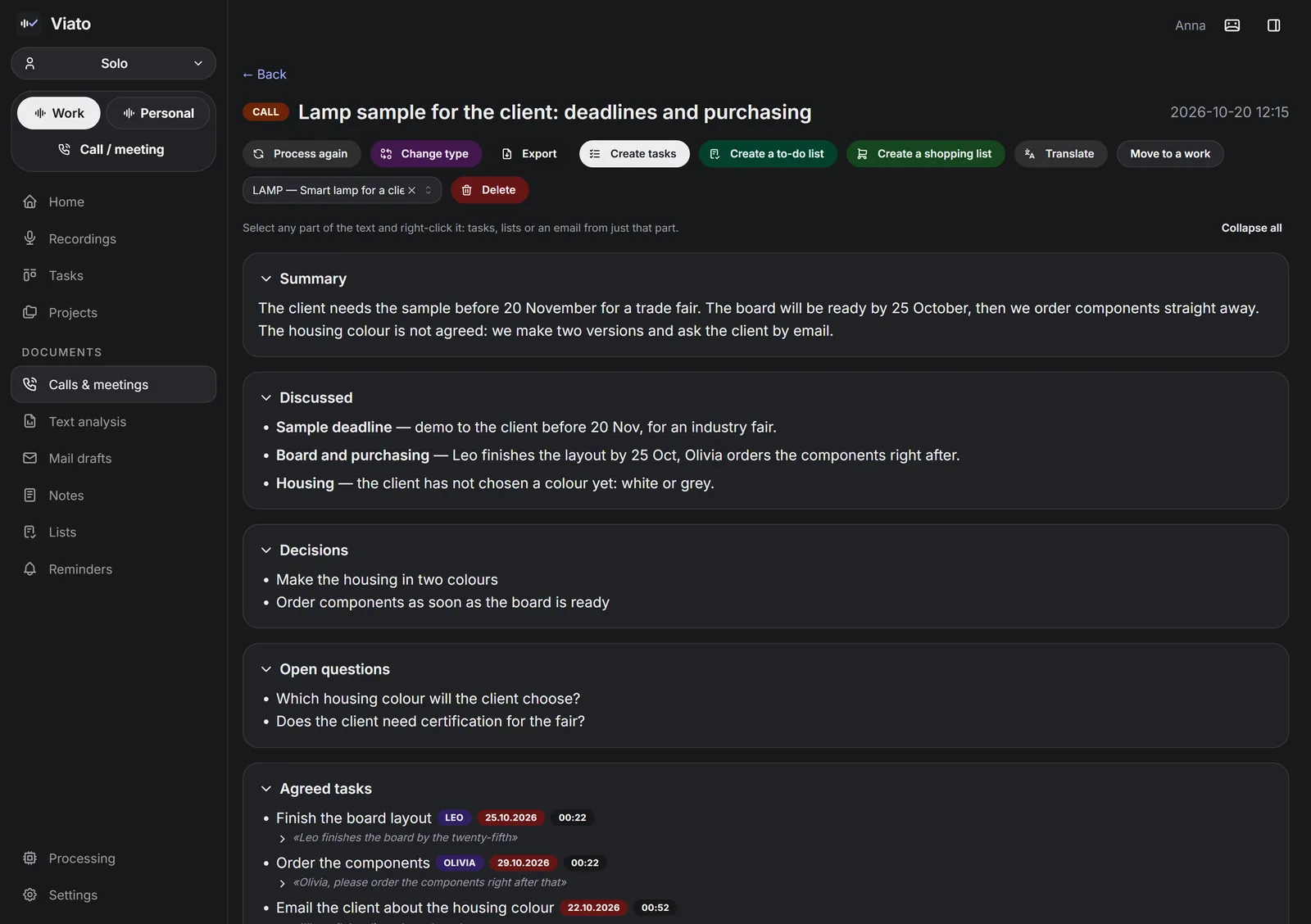
AI meeting notes in Viato: “Create tasks”, “Create a to-do list”, “Export” buttons and the minutes — summary, decisions, open questions and tasks

The call minutes write themselves — then one click turns them into tasks, a to-do or shopping list, a translation or a Word export.

Why it matters

Agreements get lost between the meeting and the tracker

01

“I think we agreed…”

After a call everyone remembers it differently. Who does what by when has to be sorted out all over again.

02

Manual retyping

Someone has to retype notes, briefs and chats into the tracker. It’s boring — so it often doesn’t happen.

03

Ideas on the go

An idea or an assignment comes up when the tracker isn’t at hand. By evening, half of it is gone.

Viato closes this gap. Everything said or written becomes structure on its own: minutes → decisions → tasks with owners and deadlines → project and Gantt chart.
What you get

Less busywork, more done

Meeting minutes write themselves

Zoom, Teams, Meet or a browser call — Viato records your microphone and computer sound at the same time. Or upload an existing audio or video file.

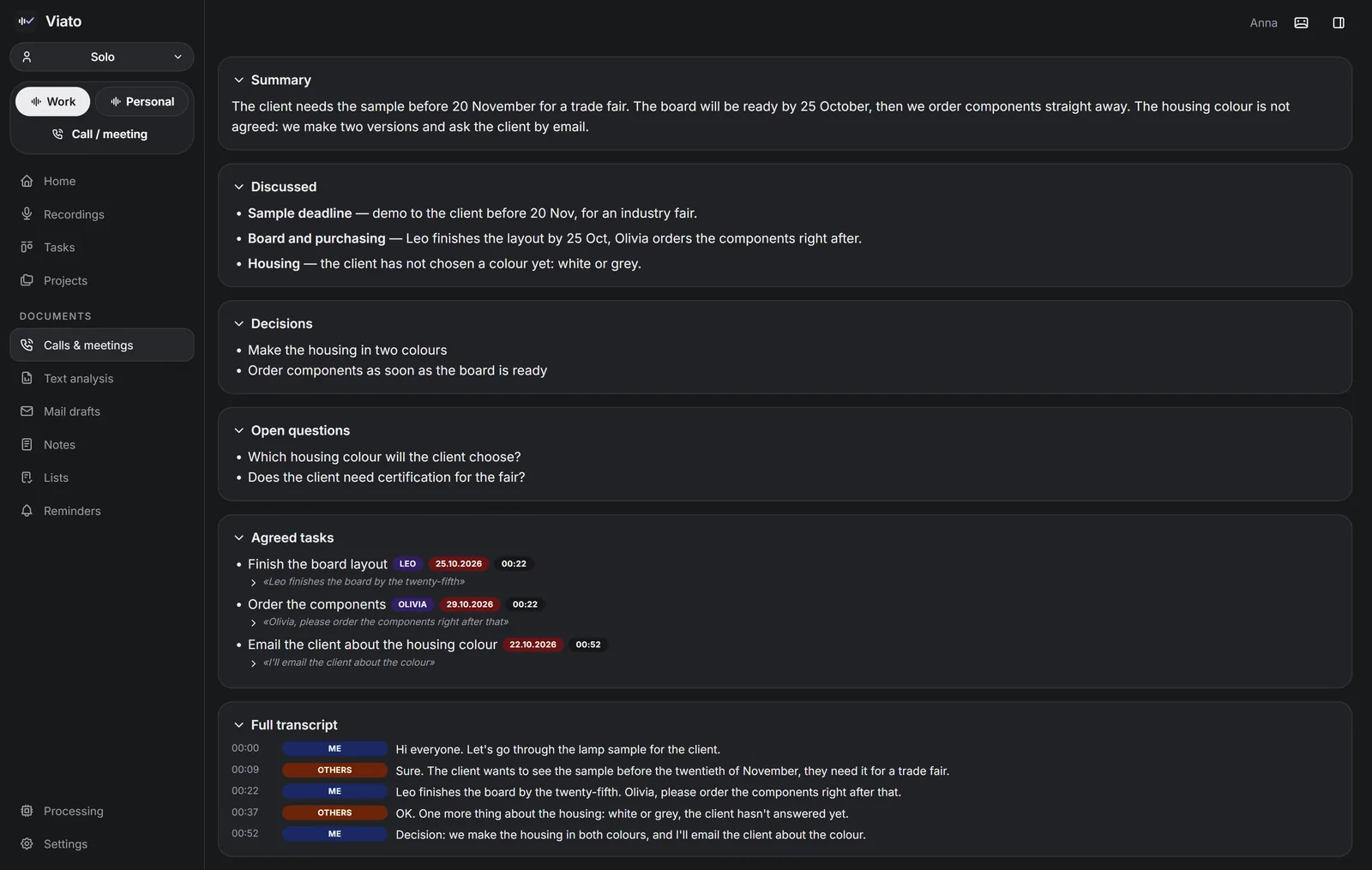
  • Summary, topics, decisions and open questions
  • Tasks with owner, deadline and a time-stamped quote
  • One click to tasks, a client email, export to Word or Markdown
After the meeting everyone has a concrete to-do list instead of a vague “I think we agreed”.
AI meeting notes in Viato: summary, decisions and tasks with owners and deadlines from a recorded call

Say it on the go — it’s filed where it belongs

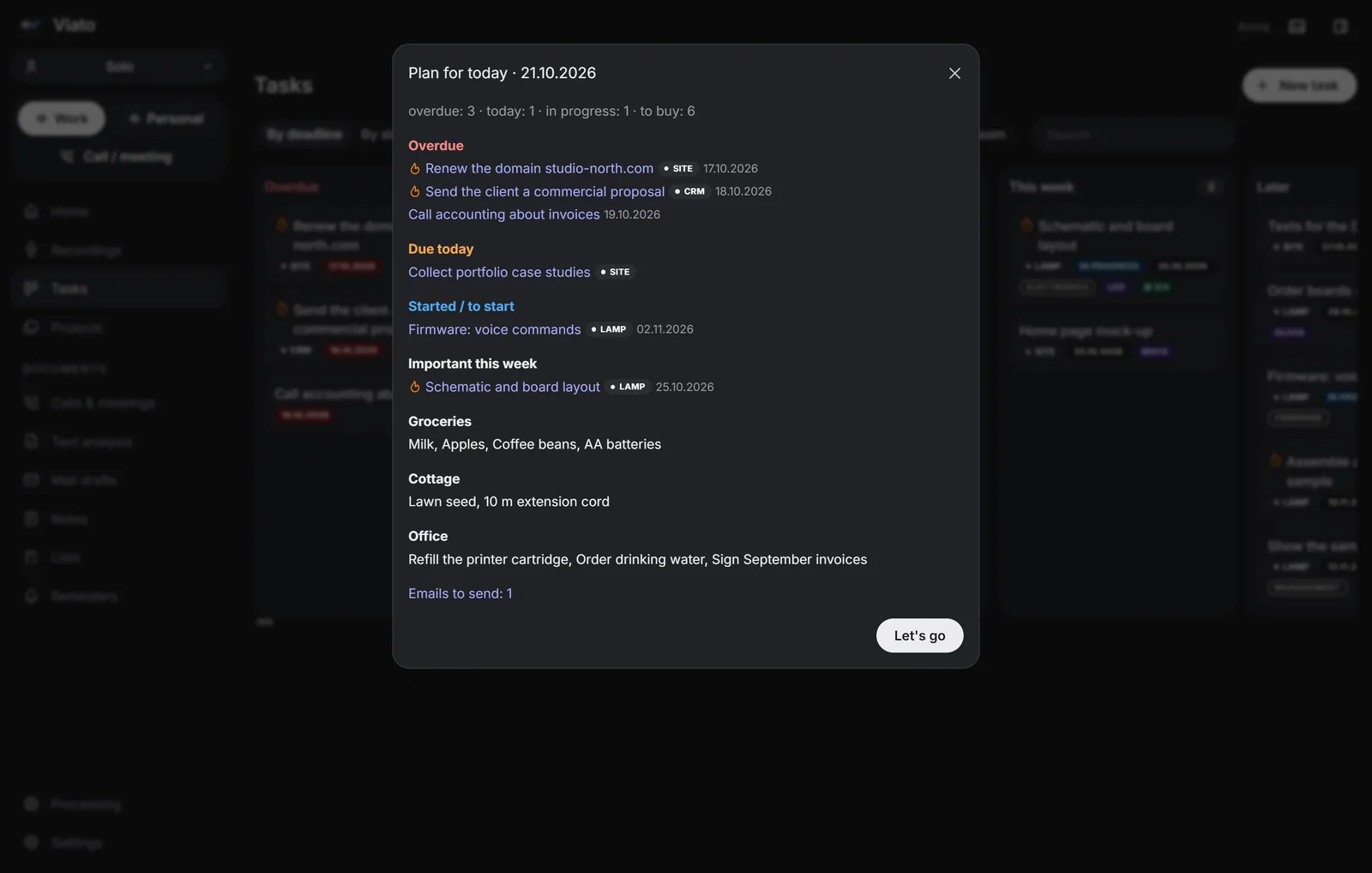
“Tasks for tomorrow…”, “Shopping list: milk, coffee…”, “Remind me at three to call the print shop” — Viato understands the command, splits speech into items and puts them where they belong.

  • Daily plan: overdue, due today, reminders, shopping
  • Deadlines like “by Friday” are computed exactly — by code, not guessed by AI
  • Email drafts in the recipient’s language — only you hit send
Nothing slips between meetings — no more rebuilding your day from memory in the evening.
Daily plan in the Viato AI task tracker: overdue tasks, today, reminders and shopping lists

See where the project stands and what matters now

Upload a brief, spec or email thread (.docx, .pdf, .xlsx and more) — AI handles it like a call and attaches tasks to the project.

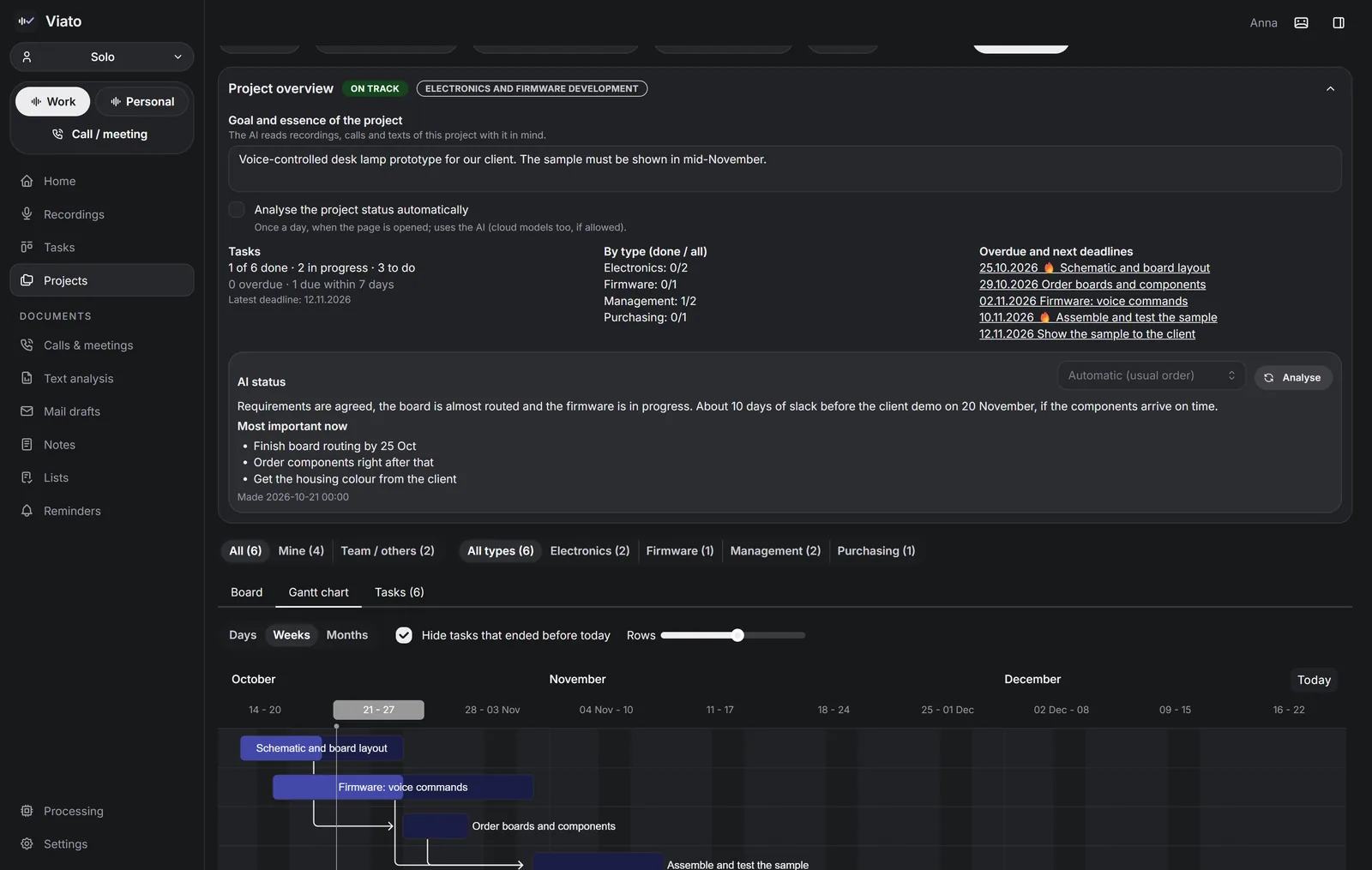
  • Overview: what’s done, what’s overdue, upcoming deadlines
  • AI assessment: are we on track and what matters most right now
  • Board, list and a Gantt chart with task dependencies
From “the client sent the materials” to a work plan in minutes, with no retyping.
Project overview in Viato: AI assessment, upcoming deadlines and a Gantt chart

The whole team in one place

Start solo and bring the team in later — your records move over with you.

  • Shared projects and tasks, roles and permissions, invite-only access
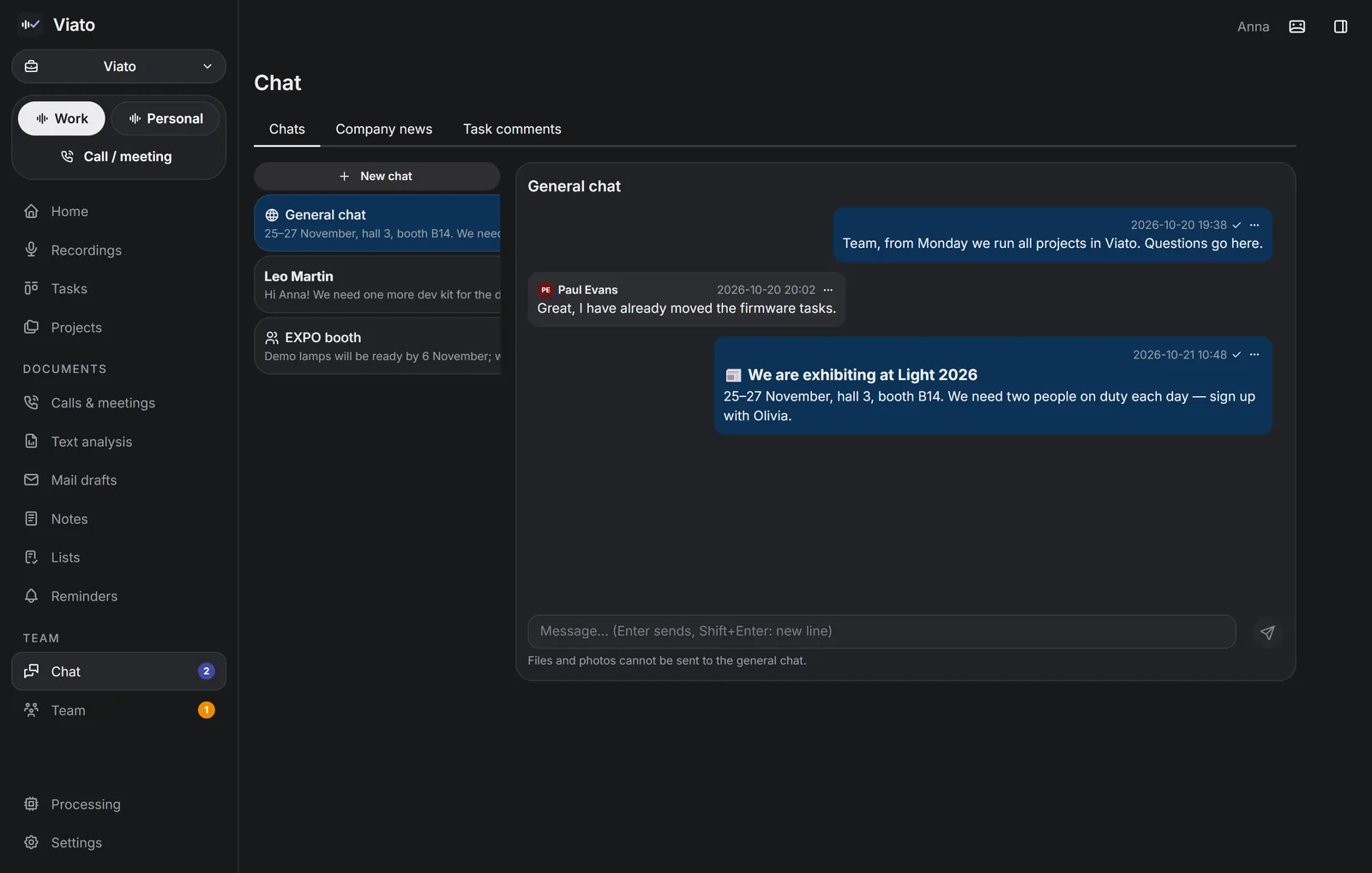
  • Chats next to tasks, meeting scheduling in everyone’s time zone
  • Your own server, installed from the app in minutes — no command line
You control the data, the infrastructure and the costs. No monthly subscription.
Team chat next to tasks in Viato
How it works

Hit “Record” — AI does the rest

1 · CAPTURE

Any source

A button on PC or phone, a call, an audio/video file, a document or pasted text.

2 · TRANSCRIBE

Speech → text

Language is detected automatically: English, Russian, German, Chinese.

3 · UNDERSTAND

Type, project, deadline

A voice command (“task for me”) or the AI’s best guess. Your choice always wins.

4 · RESULT

Ready-made items

Tasks, lists, reminders, emails, minutes — right in the right project.

Note Task Team task To-do list Shopping list Reminder Email draft Call minutes Meeting minutes
Teamwork

Your team’s tasks, chats and calls — on your own server

Everyone works in the same familiar Viato, while shared projects, tasks and chats sync through your company server. The server is yours: an admin installs it right from the app — no IT person needed and no dependence on the Viato developer.

Shared projects and tasks

Assignee, co-assignee, observer. Give a task to a whole group (“Design”, “Development”) — each person marks “done on my side”. Dependencies, checklists and clear rights: who may change deadlines and close tasks.

Chats next to the work

Direct and group chats, a general chat and company news, comments inside a task, files and read marks. Any message can become a task, a list item or an email.

Calls for the whole team

Scheduling in everyone’s time zone, invitations, busy checks, reminders 15 and 2 minutes before. Call minutes go to a colleague or a group together with the transcript.

AI for everyone, no key sharing

The admin connects cloud AI on the server: people use it without ever seeing the key, with a daily limit per person. Or installs local AI right on the server — then recordings never leave the company.

Offline and on the phone

Everyone keeps working without a connection: changes go to the server once it’s reachable again. People can join from an Android phone too.

Access control

Access only by personal invitation approved by an admin. Disable a person and the company data is removed from their computer. Personal notes and lists never go to the server.

NO IT PERSON NEEDED

A server in 5 minutes, from the app

All you need is the server address and a password. Viato does the installation, encryption, autostart and the first account itself — no command line. Server updates are one click too.

INDEPENDENT OF US

Any VPS/VDS or an office computer

Any hosting with Ubuntu or Debian works. Everything needed for setup is inside the app, the license never needs re-checking, and the server never contacts the developer. Company data lives only with you, encrypted.

BACKUPS WITH YOU

Copies on the admin’s computer

On a schedule — from every 6 hours to once a week — all company data is saved to the admin’s PC: any folder, even a cloud drive or a USB stick. Files are encrypted with the admin’s password. Rolling back to any copy is one click in the admin panel. If the server or the hosting is lost, the company moves to a new server from a backup in one click: same people, passwords and license — employees just enter the new address.

🖥️ How to launch a server for your team One admin and 15 minutes: order a server, paste its address and password into Viato, invite people

Step 1. Choose a server

BASIC

No AI on the server

  • 1–2 cores, 2–4 GB RAM, 10–20 GB disk
  • Ubuntu 22.04 / 24.04 or Debian 12 / 13, x86 or ARM CPU
  • Usually a few euros a month

Enough for the team’s tasks, chats and calls. AI runs on people’s computers or in the cloud.

WITH LOCAL AI

AI for the whole team on the server

  • 4+ cores (8 is better), 8+ GB RAM (16 GB is better), 30+ GB disk
  • Same OS: Ubuntu or Debian. No graphics card needed — server AI runs on the CPU

The server transcribes and analyses recordings for everyone: nothing goes to the cloud, laptops stay free. Viato checks the server and suggests a model that fits.

  1. Sign up with any VPS/VDS hosting (for example Hetzner, DigitalOcean, Timeweb Cloud, Selectel) and create a server. Pick a country it’s easily reachable from for everyone.
  2. Operating system: Ubuntu 24.04. Login method: root password (not just an SSH key).
  3. Once the server is created, find its IP address and root password in the hosting panel — they’re often emailed to you.
  4. If the hosting has a firewall or “security groups”, open incoming ports TCP 443 and 22.

Step 2. Get a license key

Message us on Telegram — we’ll give you a Team 5 key right away. Activate it within the period stated when it’s issued.

Step 3. Install the server from the app

  1. Viato → Settings → “Mode and works” → “With a team” → “Add a work” → “Set up the server”.
  2. “Choose the key file” — pick the license file (or paste its text).
  3. Enter the server IP address, root password and company name.
  4. Your name, admin login and password (at least 8 characters).
  5. “Install” — usually 1–5 minutes, with progress shown step by step.
  6. Save the server key it shows somewhere safe.
The root password is used only for setup and is never stored. Right after setup, turn off password login: “Team” → “Server”. The app updates the server with its own key.

Step 4. Turn on backups

  1. “Team” → “Backups” → set a backup password and write it down: without it a file can’t be opened, and it can’t be recovered.
  2. Turn on “Make them automatically”, choose how often and how many copies to keep. The folder can be on a cloud drive or a USB stick.
  3. If the server is lost (hosting failure, deleted VPS): order a new one, then “Team” → “Server” → “Restore the company onto a new server”. Viato sets up the server, brings the company back from the backup and gives you a ready message for employees — they paste it into “Change server address”.

Step 5. Local AI on the server (optional)

In the company workspace: Settings → “Company AI keys” → install local AI on the server. Viato checks memory and disk and suggests a model. There you can also share cloud keys through the server — with a daily limit per person.

Step 6. Invite people

  1. “Team” → “Invitations” → “New invitation” → copy the code (starts with VIATO1-) and send it to the person in any messenger.
  2. The person: Settings → “Mode and works” → “With a team” → “Add a work” → “Join with a code”, then picks a login and password.
  3. Approve them: “Team” → “People” → “Approve”.
An office server instead of a VPS your own machine, no rent

Any computer or mini PC that stays on will do. Handy when everyone is in the office or connects to it over a company VPN. If people work from different places without a VPN, renting a VPS is simpler.

NO AI ON THE SERVER

2 cores, 4 GB RAM, 20+ GB SSD. An old office PC or an inexpensive mini PC will do.

WITH LOCAL AI

4+ cores (8 is better), 16 GB RAM, 50+ GB SSD. No graphics card needed.

  1. Install Ubuntu Server 24.04. In the installer, tick “Install OpenSSH server”.
  2. In the router settings, give the computer a fixed address on the network (DHCP reservation), e.g. 192.168.1.50.
  3. Allow root password login for the setup — run on the server:
    sudo passwd root
    echo "PermitRootLogin yes" | sudo tee /etc/ssh/sshd_config.d/10-root.conf
    sudo systemctl restart ssh
  4. Then follow Steps 2–6 as with a VPS, using the computer’s office network address instead of a hosting IP.
  5. After setup, turn off password login: “Team” → “Server”.

Stuck? Message us and we’ll help with the setup. Full details are in the setup guide.

Privacy

You decide where your conversations are processed

The most common question is where recordings go. Viato has three modes, and you can switch any time.

LOCAL ONLY

Nothing leaves your computer

Speech recognition and analysis run on your PC. No internet needed. One switch blocks every cloud service.

For
legal, medical, finance, NDA negotiations
Cost
free
HYBRID

Local first, cloud when needed

Local AI goes first; the cloud helps with long calls or when your computer is busy.

For
most people — balance of privacy and speed
Cost
free with free cloud models
CLOUD

Faster on long calls

The recording goes straight to the provider you choose, with your own key. You can keep only providers that don’t train on your data.

For
low-end laptops, many long calls
Cost
free, or cents per call

What never leaves

  • Nothing goes to the Viato developer. We have no cloud, no accounts and no analytics. We never see your recordings or tasks.
  • AI keys stay on your computer; they reach your phone only encrypted.
  • Personal notes, lists and reminders never go even to your company server.
Who it’s for

For people with lots of conversations and little time to process them

Freelancer, consultant, expert

Minutes of every client call, tasks per project, email drafts — on your own laptop, for free.

Studio, agency, engineering team

Shared projects and Gantt, tasks from meetings with owners, chats next to tasks, your own server.

Manager

An overview of every project: what’s overdue, where the risk is, what matters now. Agreements don’t get lost.

Companies with data requirements

Processing on your own hardware and encrypted storage on your own server.

Pricing

Not a subscription: buy once, use forever

Solo

Free

Every feature, for one person.

Download
FREE KEY

Team 5

up to 5 people

For a small studio or project group.

Get the key

Team 15

up to 15 people

For an agency or a department.

Buy license

Unlimited

no limits

For a company of any size.

Buy license
🎁

A free 5-person key — right away

Message us and we’ll send you a Team 5 key straight away, free of charge. In return we’ll ask one thing: once Viato has been working for you a while, tell us how the rollout went and what got easier.

Get the key on Telegram

One-time purchase

A perpetual license with no monthly fees. App and server updates are free.

Per company, not per seat

The admin activates one key on the team server. Grow into a bigger tier any time — data stays.

No activation server

No periodic license checks — your work never depends on us.

Download

Computer and phone

Your computer is the main workplace: it runs local AI and records calls. Your phone pairs with it via a QR code.

Windows

Windows 10 / 11 · 64-bit · ~285 MB

Download for Windows

macOS

macOS 13+ · Apple Silicon (M1–M4) · ~310 MB

Download for Mac

Android

Android 8+ · ~6 MB

Download APK

Runs on an ordinary laptop

With cloud AI even the weakest computer will do: the heavy lifting happens on the service’s side. For local AI no graphics card is required — Viato checks your computer and suggests a model it can handle.

First launch

Viato is a young project, and our installers don’t carry a paid Microsoft or Apple code signature yet. That’s why Windows or macOS may warn about an unknown publisher: the system does this for any new app without such a signature — not because it found a threat. The setup guide shows how to open the app. Not sure? Upload the file to virustotal.com — dozens of antivirus engines will check it for free. Only download Viato from viato.tech.

Your phone, always with you

Notes, tasks, lists and reminders on Android — even offline. Recordings are processed in the cloud or on your PC.

Documentation

Everything you need to start in one evening

FAQ

Frequently asked questions

Where do my recordings go?

Wherever you decide: only your computer, hybrid mode, or a cloud provider of your choice using your own key. The Viato developer has no cloud — we never see your recordings or tasks.

Do I need the internet?

No. Recording, tasks and lists always work, and with local AI so does all processing. The internet is only needed for cloud models and team sync.

Do I need a powerful computer?

No. Light local models work on an ordinary office laptop, and long calls can go to a free cloud model. With a 4 GB+ graphics card, minutes are produced fully locally.

How much does the AI cost?

Local AI and free cloud models cost nothing. Paid services are off by default and cost cents per call if you turn them on.

How do I buy a team license?

Click “Buy license” — it opens our Telegram bot. Tell us your team size and how you work, and we’ll reply personally.

Record your next call with Viato

…and compare the minutes with what you remember yourself.